
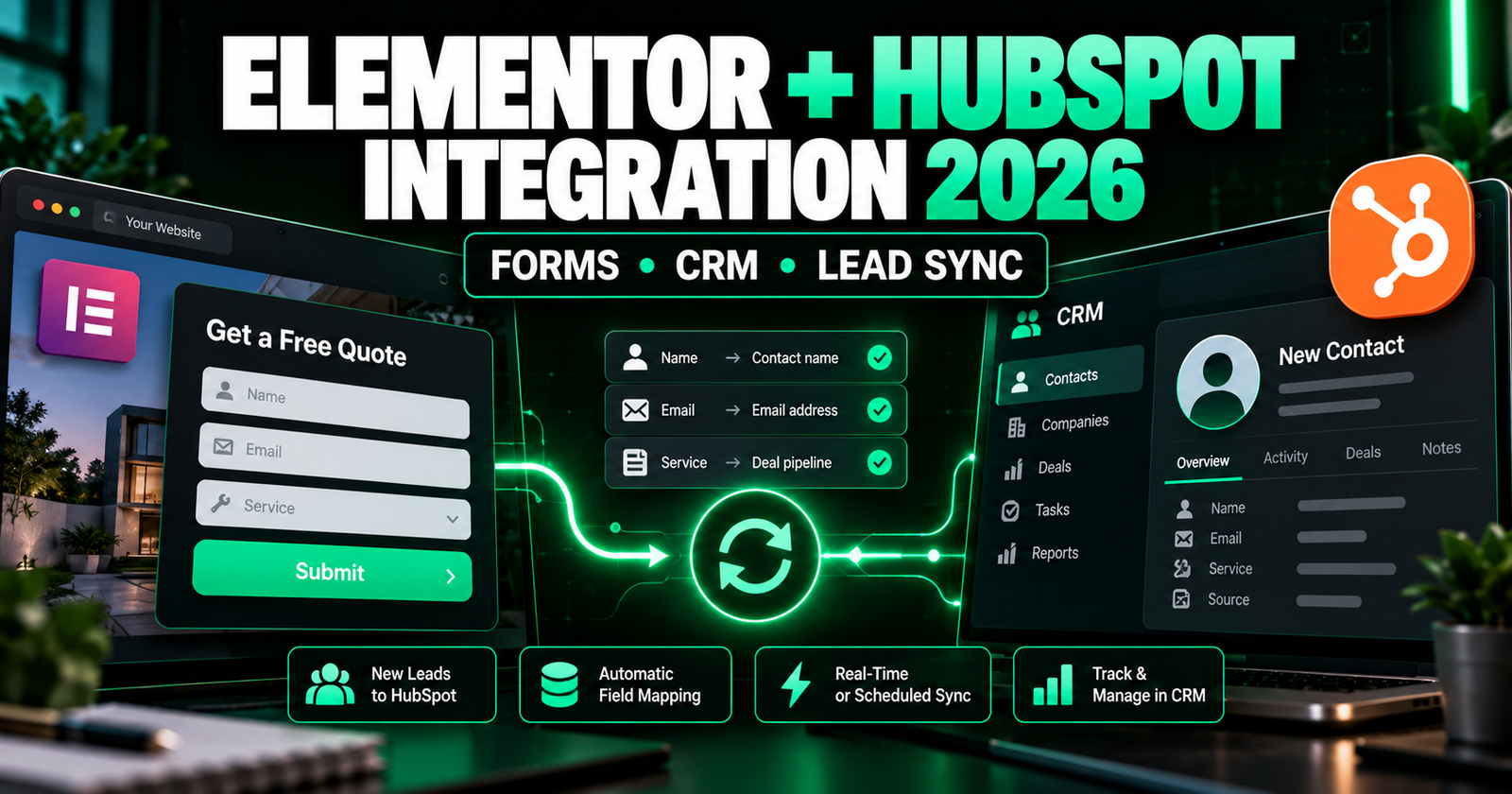

Research updated October 18, 2026. Trying to connect an Elementor form to HubSpot without losing leads? The connection can be straightforward, but the critical question is not whether the tools display “connected”—it’s whether a real submission creates or updates the correct CRM contact and triggers the right follow-up.
Quick answer: Elementor’s official HubSpot integration documentation says it is available to Elementor plugin Advanced plans and above, or certain eligible Elementor Hosting plans, and requires your HubSpot account to accept non-HubSpot forms. If the built-in route is unavailable or unreliable, you can instead embed a native HubSpot form in your page or scope a custom form-submission/API integration. Read Elementor’s official requirements. Do not assume all Elementor licenses include these integration capabilities.
This guide compares the actual routes, explains costs you should check before upgrading or hiring, provides a ready-to-use field-mapping table and a five-test acceptance checklist. Unlike a general HubSpot onboarding article, the focus here is one specific source: an Elementor website form and the path to HubSpot CRM.
BEFORE PAYING FOR SETUP
Check your form, CRM destination and permissions first.
You may need only basic capture—or an additional workflow for routing and approved email replies. Review the five acceptance tests before you pay for custom work.
Elementor HubSpot integration: three ways to connect your forms
| Option | Good for | What you must verify |
|---|---|---|
| 1. Elementor form + HubSpot WordPress plugin | Keep Elementor’s form design and use non-HubSpot form collection | Eligible Elementor plan, HubSpot settings, plugin connection, actual submission visibility |
| 2. Native HubSpot form embedded in Elementor | Prefer a HubSpot-managed form and form-level behavior | Embed script, page domain, design, tracking, permissions and form version |
| 3. Custom/API or integration workflow | Special validation, routing, multiple tools or complex data mapping | Secure processing, consent, retries, testing, account ownership and maintenance |
Important: HubSpot tracking of non-HubSpot forms is not the same thing as sending data directly through a custom Forms API. The first approach depends on compatible page markup and browser tracking; the second requires a properly designed integration. Treat them as different reliability and implementation projects.
Method 1: connect an Elementor form to HubSpot (official approach)
Elementor’s integration instructions, updated June 19, 2026, describe the requirements and the WordPress HubSpot plugin connection. Menus and interfaces can change; verify what your installed product actually offers rather than following older screenshots.
- Check eligibility. For the integration described in Elementor’s official guide, plugin subscribers need an Advanced plan or higher. Eligible Elementor Hosting users require Business or higher, or Sell+ Pro or higher as described by Elementor. Check the current plan matrix before buying an upgrade.
- Install and connect the HubSpot WordPress plugin. In WordPress Admin, install the legitimate HubSpot plugin, open its settings, select the intended HubSpot user/account and connect the website. Make sure you choose the right CRM portal—especially if you manage multiple client sites.
- Enable collection of non-HubSpot forms. In HubSpot’s form settings, enable collection of supported external forms. HubSpot requires the tracking code or its WordPress plugin and explains restrictions on which HTML forms it can collect.
- Name your Elementor form clearly. Open the form in Elementor, review its identifier, label, fields and input types, and give it a distinctive name. Add a usable email field; do not assume a custom-looking form is automatically detectable by HubSpot.
- Submit two controlled tests. Use one brand-new email and one existing HubSpot contact. Check Marketing → Forms and the contact timeline, not just the Elementor confirmation message.
- Define the follow-up separately. Confirm the correct owner, lifecycle handling, approved first reply and escalation path; connecting the form alone does not guarantee your desired CRM routing workflow exists.
HubSpot explains that its non-HubSpot forms tool recognizes compatible HTML forms, requires tracking, and can collect submissions upon button clicks. Depending on the external form’s validation, this can produce both partial and completed submissions; you should test the actual output. Official HubSpot requirements and limitations.
Why the green success message is not proof
An Elementor success message may confirm WordPress processed the form while HubSpot’s tracking script was blocked, the form was unsupported or HubSpot recorded a partial submission. Use a unique test email, record the submission time, inspect the specific HubSpot contact and compare the CRM values. Repeat from desktop and mobile.
Method 2: use a real HubSpot form inside Elementor
For some projects, a form created in HubSpot and then embedded in a WordPress/Elementor page gives a clearer ownership model: edit fields in HubSpot, publish the form, and embed it on the site. HubSpot’s external form embedding documentation describes script and domain considerations.
- Create a form in your HubSpot account, add the approved fields and contact-consent copy, and publish.
- Copy the current HubSpot embed method for your form and add it to the relevant WordPress page using a supported element or plugin.
- Check that the form renders and submits on desktop and mobile, without conflicting CSS or CSP/security rules.
- Add the site’s domain in the relevant HubSpot tracking settings and verify the production URL, especially after domain redirects or staging-to-live migration.
- Validate the HubSpot contact record and required routing after submission.
HubSpot warns that forms embedded on external pages can fail because of tracking configuration, altered embed code, domain restrictions, duplicate IDs and blocked scripts. If the native embed is the route you choose, test on the form’s standalone HubSpot page as a comparison. Official HubSpot troubleshooting.
Method 3: custom form/API workflow—when it pays to hire
Custom integration may be justified if you must send the lead into a specific pipeline, route by location, add nonstandard CRM fields, synchronize with other tools or capture acceptance tests independently of browser tracking. It also creates work: authentication, consent handling, field validation, retry and deduplication, audit logs and secure secrets management.
HubSpot recommends a direct form-submission API or a dedicated integration when browser-based non-HubSpot capture cannot meet a site’s requirements. A developer should use currently supported HubSpot API documentation rather than copying an old unauthenticated script or exposing private credentials in a web page.
Before paying, request one clear deliverable: “A submitted Elementor form must create or update one intended HubSpot contact, preserve lead source, route to the right owner, and leave a reviewable failure log.” Anything beyond one website form and one destination must be scoped separately.
Elementor to HubSpot field mapping: copy this example
Field mapping is where apparently successful integrations still lose commercial value. The example below is a project brief—actual HubSpot internal property names, access and mappings depend on your account and chosen integration method.
| Elementor input | HubSpot destination | Pass condition |
|---|---|---|
| Email (type email) | Contact email | Contact found by correct address; no unexpected duplicate |
| First name | Firstname property | Exact test spelling preserved |
| Phone | Phone property | Country code and formatting appropriate |
| Service type / budget | Approved HubSpot custom property | Enumeration matches allowed values; no silent field drop |
| Message / request | Message text or note if supported | Message associated with correct lead |
| Consent checkbox / source | Appropriate permissions + source tracking | Consent and lead-origin handling verified, not assumed |
Hidden fields and special cases: HubSpot’s non-HubSpot forms FAQ says hidden fields aren’t captured by its browser-based form detection. If attribution or consent depends on a hidden field, verify a supported alternative instead of trusting an apparently successful test. For complex scenarios, a HubSpot-native form or properly scoped API flow may be more appropriate.
Five acceptance tests before going live
| Test | Action | Must happen |
|---|---|---|
| 1. New lead | Submit with unique address on desktop | One intended contact with accurate fields and source |
| 2. Existing lead | Repeat with known test email | Correct existing contact updated; no unexpected new contact |
| 3. Validation error | Try missing email / malformed phone | No unapproved partial lead, or partial behavior clearly documented |
| 4. Mobile / script behavior | Submit on mobile; examine blocked tracking case | Agreed fallback and clear user result; no hidden loss |
| 5. Follow-up handoff | Submit valid lead that needs owner response | Correct owner notified; approved email sent if configured, with tests documented |
Use controlled test contacts rather than real customer data. Save WordPress submission time, HubSpot contact ID, assigned owner and the exact output. If a test fails, fix it before running paid ads to the landing page.
Why your Elementor form isn’t appearing in HubSpot
1. Non-HubSpot capture is switched off—or tracking doesn’t load
Check the setting in the correct HubSpot account and verify its tracking code or WordPress plugin is actually active on the page. HubSpot notes that browser extensions or JavaScript conflicts can prevent collection. View the submitted form under HubSpot’s non-HubSpot forms area after a real test, and check the contact timeline.
2. The form’s HTML is unsupported by non-HubSpot form tracking
HubSpot documents technical restrictions around static HTML forms, supported email inputs, form markup, JavaScript-bound submit behavior, iframes and dynamic or SPA interfaces. If your Elementor setup is highly customized, do not assume detection will work; test or consider a native HubSpot form/API integration. HubSpot technical FAQ.
3. The wrong HubSpot portal is connected
Check which user and portal authorized the WordPress plugin. For agencies with multiple client CRMs, it’s easy to observe successful connection while inspecting the wrong HubSpot database.
4. Field types don’t map correctly or hidden fields vanish
Test the precise fields required by the business. Browser capture may not preserve hidden campaign data or complex custom controls. When your CRM automation depends on them, require an explicit supported mapping and repeatable evidence.
5. Contacts arrive—but the owner isn’t notified
Form capture and post-submission automation are different stages. Verify the workflow’s trigger, eligible HubSpot plan/features, routing rule and approved email. A successful contact creation alone isn’t proof that the sales team received and responded to the lead.
Elementor HubSpot integration cost: free route vs setup service
Separate four budget items: the Elementor plan and widgets you need, any HubSpot subscription features, paid integration/automation software if used, and implementation/testing work.
| Approach | Typical cost structure | Best fit |
|---|---|---|
| Eligible Elementor form + HubSpot plugin | Elementor plan fee (as applicable); HubSpot plugin is free; possible CRM feature charges | Simple lead capture where browser-based collection passes tests |
| Embedded HubSpot form | HubSpot form/CRM feature eligibility + website implementation | Prefer form logic and edits maintained in HubSpot |
| Custom integration / specialist | Individually scoped build + any software + maintenance | Custom fields, routing, security/reliability needs |
| HereFlowAI Lead Follow-Up Setup | $149 one time, only where the scope and connector are supported | One eligible lead source, one destination CRM/Sheets, email follow-up, simple routing and tests |
Price warning: Elementor, HubSpot and third-party software can change prices, eligibility, trial conditions and renewal rates. The official Elementor help guide documents plan eligibility but does not establish a universal all-inclusive price for every business. Don’t invent a mandatory installation fee for a setup you can configure yourself, or assume the $149 HereFlowAI Starter pays your external subscriptions.
Is HereFlowAI’s $149 Lead Follow-Up Setup right for your Elementor form?
Our Lead Follow-Up Automation Setup — Starter covers one supported lead source (for example, an eligible website form), one supported CRM or Google Sheets destination, approved email follow-up, basic lead routing, owner notification, testing and handover. For Elementor + HubSpot, compatibility must be confirmed before purchase; the website being built with Elementor does not by itself prove the exact configuration is supported.
Not included in $149: paid HubSpot/Elementor licenses, custom API development, multiple CRMs, SMS/WhatsApp charges, complex AI qualification, large historical migrations or ongoing maintenance. A broken custom Elementor form may require separate repair work beyond the starter.
HEREFLOWAI • SCOPE FIRST
Want a working lead handoff—not just an installed plugin?
First confirm your Elementor form, HubSpot portal and desired fields fit the published Starter scope. When they do, the $149 Starter covers one focused follow-up workflow, testing and documentation. Installation of a complex HubSpot implementation is not guaranteed.
If you’re unsure about the process or have multiple tools to connect, the $49 AI Automation Audit is a separate planning service for one workflow. It provides prioritized opportunities, a blueprint and recommendations; it does not install a full custom integration.
When should you hire an Elementor–HubSpot specialist?
Hire a specialist if tests fail despite documented settings, the form uses complex custom controls, your sales pipeline requires more than one simple destination, or data-loss risk is significant. Ask sellers to inspect the current setup first and provide an accepted-deliverables quote—not an unbounded “complete HubSpot automation” promise.
Copy this project brief:
We need an Elementor form to create/update HubSpot CRM contacts reliably. Our Elementor plan is [plan], our HubSpot account/plan is [plan], and the current form is [URL]. The required fields are [field list]. Quote a scoped solution including plugin/plan compatibility, secure connection, field mapping, duplicate prevention, correct owner notification, the five acceptance tests in this guide, documentation and handover. List third-party subscriptions, exclusions and post-launch support separately.
Compare relevant providers using our HubSpot setup service hiring guide and WordPress developer checklist.
Compare Elementor–HubSpot Specialists on Fiverr →
Affiliate disclosure: This Fiverr Marketplace link is affiliated; HereFlowAI may earn a commission from eligible referred purchases. Search for “Elementor HubSpot integration.” We have not personally vetted every seller, and quality depends on their demonstrated experience and written deliverables.
Where does Hostinger fit with Elementor and HubSpot?
Hostinger provides WordPress hosting infrastructure—it is not a HubSpot CRM subscription and not a guaranteed integration service. If you need to launch or move a WordPress site built with Elementor, hosting is a separate purchase from form capture, HubSpot features and professional integration work. See our Hostinger WordPress hosting guide and compare Hostinger’s referral and coupon options if you’re choosing new hosting. The coupon/referral page includes a paid-referral disclosure; always verify the current checkout total and renewal rate.
FAQ: Elementor Forms and HubSpot CRM
Can I integrate Elementor forms with HubSpot for free?
The HubSpot WordPress plugin is free, and some basic HubSpot CRM functions are free. However, Elementor’s official documentation lists plan eligibility requirements for the particular Elementor forms integration, and advanced HubSpot features can require a paid subscription. Do not assume the complete workflow is free just because the plugin download is free.
Does Elementor need Elementor Pro or an Advanced plan for HubSpot?
Elementor’s June 2026 guide states that integrations require plugin Advanced plans or higher, or specific Elementor Hosting plans. Current product packaging can change; compare your exact subscription to the current integration feature list before upgrading.
Why are Elementor submissions missing from HubSpot?
Common causes include disabled non-HubSpot form capture, blocked tracking JavaScript, unsupported form markup, plugin conflicts or connecting the wrong CRM portal. Use controlled submissions and inspect both the Forms area and Contacts.
Can Elementor fields map to custom HubSpot properties?
Some integration methods allow more control over property mapping than browser-based capture. Test the specific custom properties and accepted values. Hidden fields and nonstandard submit behavior may not be collected by HubSpot’s non-HubSpot forms feature, so don’t assume complex mappings work without a direct integration.
Do I have to hire an agency to connect Elementor to HubSpot?
No. A basic compatible form can often be configured by the site’s administrator using officially documented tools. Hire a specialist when the integration is customized, breaks repeatedly or has business-critical data requirements.
Does the $149 HereFlowAI package include full HubSpot setup?
No. It is a bounded lead follow-up Starter covering one supported source and one supported destination, email follow-up, notification and handover. A full CRM migration or custom API build is out of scope. Confirm connector compatibility before purchasing.
Is Hostinger required for the integration?
No. Hostinger is one optional WordPress host. The Elementor–HubSpot connection depends on your relevant WordPress, Elementor, HubSpot and integration configuration, not the hosting brand alone.
Final checklist before accepting the integration
A successful Elementor–HubSpot project ends with five pieces of proof: a new contact, a correct update of an existing contact, documented validation behavior, a successful mobile test and the right follow-up notification. Save a copy of the configuration and identify who maintains the integration when plugins or permissions change. Start with the simple documented route; pay for custom work only when the requirements justify it.
Sources and editorial notes
Reviewed October 18, 2026: Elementor HubSpot integration documentation (updated June 19, 2026), HubSpot non-HubSpot forms guide (updated July 27, 2026), HubSpot non-HubSpot forms FAQ, HubSpot external embedding guide, HubSpot form embed troubleshooting, and HubSpot WordPress plugin. Vendor docs support the described capabilities and restrictions, not a hands-on benchmark or guaranteed revenue. HereFlowAI markets separate $149 setup and $49 planning services and may earn referral commissions on clearly identified Fiverr/Hostinger routes. Prices and plans can change; check official terms before buying.


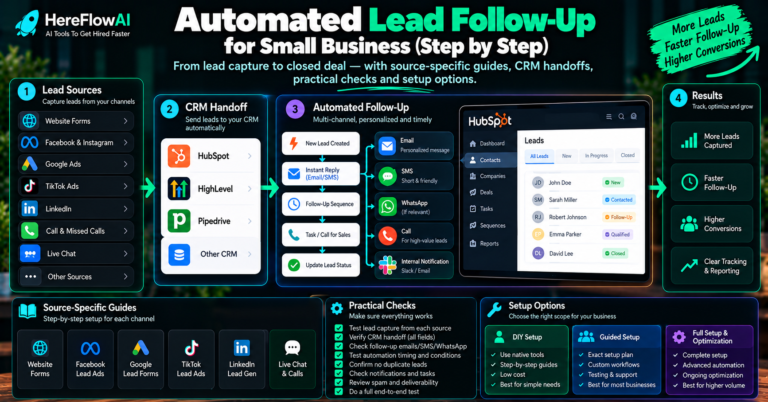
[…] the source connection, use Elementor form to HubSpot setup or Facebook Instant Form to HubSpot sync. If the decision is which actions to delegate, read […]
[…] this guide for Meta Instant Form syncing. For a website form built with Elementor, use the Elementor to HubSpot integration guide. Both sources can feed a CRM, but their permissions, source events and troubleshooting paths […]