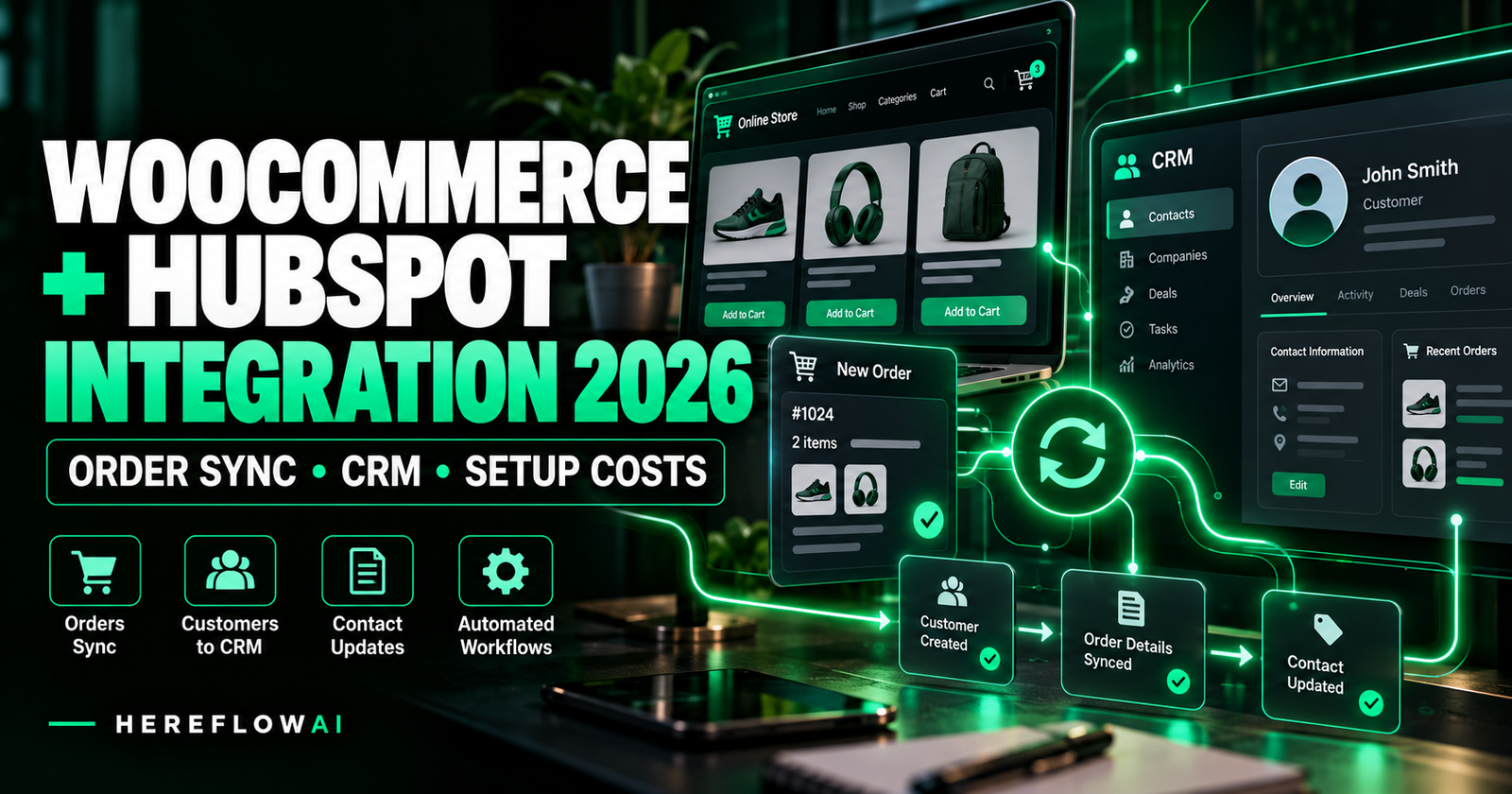

Updated October 18, 2026. Looking for a WooCommerce HubSpot integration that actually keeps customer and order records usable? This guide explains the difference between WordPress contact capture and full ecommerce sync, compares real integration options, and gives you a test checklist before you pay for a plugin or developer.
Quick answer: The free HubSpot WordPress plugin is useful for website forms and contact capture, but you should not assume it synchronizes WooCommerce orders, line items, refunds and historical data automatically. For store-to-CRM syncing, evaluate a dedicated WooCommerce–HubSpot connector such as MWB HubSpot for WooCommerce, CRM Perks, or Unific—or scope a custom webhook/API workflow. Each approach has different object mapping, compatibility, usage allowances and costs. HubSpot’s WordPress plugin overview describes form/CRM capabilities; dedicated ecommerce connectors document the order-related functionality separately.
Buying decision: If you need simple contact capture, try an appropriate supported plugin first. If you need order statuses, order histories, returns, duplicates or multiple stores mapped into HubSpot, require a written integration scope and independent testing before hiring anyone.
BUYER CHECKLIST
Need WooCommerce orders to arrive correctly in HubSpot?
Use the field-mapping table and five acceptance tests below to compare developers on the same deliverables. A general lead-follow-up package is not the same as a complete ecommerce order sync.
WooCommerce to HubSpot: which information do you actually need to sync?
Before choosing software, specify the destination record for every WooCommerce event. HubSpot Contacts represent customers; Deals can represent sales opportunities; Orders and line items represent commerce records when the integration and HubSpot objects support them. One integration may turn purchases into Deals, another may use Orders, and another may only add properties to Contacts. Those are not interchangeable.
| WooCommerce event / field | Possible HubSpot destination | Acceptance requirement |
|---|---|---|
| New customer email + name | Contact | Create new or update existing contact, never duplicate by default |
| Order ID, amount, currency, timestamp | Order or Deal (connector dependent) | Preserve source order ID for updates and reconciliation |
| Products, SKU, quantity | Line items / products / properties | Confirm each item’s quantity, price and association |
| Processing → completed → refunded | Order status / Deal stage / custom fields | Update original record; don’t create a second purchase |
| Abandoned checkout | Cart / Contact / workflow | Respect consent and define when a cart counts as abandoned |
| Historic orders | Backfill of agreed objects | Check dates, pagination, duplicates and maximum historical window |
Important distinction: “Contact sync works” does not prove order sync works, and “one new order synced” does not prove refunds or old orders sync correctly. Ask for a demonstrable result for every row you need.
Four ways to connect WooCommerce with HubSpot in 2026
Option 1: HubSpot’s free WordPress plugin — useful for lead capture
HubSpot publishes a free WordPress plugin for CRM, forms, contacts, marketing and tracking. Its official installation guide lists WordPress administrator and HubSpot Super Admin permissions and explains how website form contacts can reach the CRM.
Choose it for: a contact form, newsletter capture or website tracking. Do not choose it by itself on the assumption that every WooCommerce transaction, product, refund and historical order is mirrored in HubSpot. Verify a dedicated ecommerce integration for those tasks.
Option 2: MWB HubSpot for WooCommerce — broad marketing features; check HPOS costs
The MWB HubSpot for WooCommerce plugin listing documents customer and order sync, abandoned cart activity, contact profiles, deal-stage mapping and reporting workflows. Its published description lists a free base plugin and various add-ons.
Critical 2026 caveat: the listing references an HPOS Compatibility add-on, and reviews report additional payment requirements when stores use High-Performance Order Storage. Treat those reviews as reports from individual users, not universal proof of the current price. Before buying, ask the vendor in writing whether your exact WooCommerce/HPOS configuration requires a paid add-on, what the current price is, and which features remain included.
Option 3: CRM Perks Integration for HubSpot and WooCommerce — field mapping and objects
The CRM Perks plugin directory describes configurable feeds: select a HubSpot object such as Contact or Deal, map WooCommerce fields, set an export event, inspect logs and resend failed records. Its documentation notes that more advanced capabilities are premium.
Choose it for: stores that require explicit field mapping and want logs for specific exports. Verify: your required HubSpot objects, update behavior, idempotency, data associations, HPOS support and premium-only capabilities on the exact version offered.
Option 4: Unific WooCommerce Sync — order-based plan limits
Unific lists a WooCommerce Sync integration in the HubSpot Marketplace. Its public FREE Forever description includes 25 order syncs per month, 25 abandoned-cart syncs per month, unlimited customer syncs, one store and up to 30 days of historical orders. The Marketplace notes that partner pricing was last updated on December 12, 2025; check the live quote and eligibility before relying on these 2026 purchasing decisions.
Choose it for: evaluating a low-volume ecommerce connector with defined allowances. Watch out: an online store with more than 25 monthly orders can exceed the published free-tier allowance quickly.
When a custom integration is the right choice
WooCommerce supports webhooks for order, customer and product events. A specialist can use webhooks, an intermediate automation tool and the HubSpot APIs to create or update objects according to your requirements. This is a software project, not merely “install one plugin.”
Custom builds may fit when you need multiple stores, nonstandard fields, nonstandard refunds/returns logic or a specific CRM ownership process. They require event authentication, retries, idempotent updates, error logs and someone to support the system after handover. Don’t send API secrets over email to a freelancer; use the supported OAuth or least-privilege credential method.
WooCommerce HubSpot integration pricing: what is free and what costs extra?
Integration pricing has at least three layers: HubSpot subscription requirements, the plugin/connector subscription, and optional paid setup or maintenance. A free download does not guarantee every HubSpot feature or every WooCommerce order workflow will work for free.
| Cost layer | Published evidence | Before you pay |
|---|---|---|
| HubSpot CRM / WordPress plugin | Free WordPress plugin; CRM and advanced HubSpot features depend on plan | Confirm required objects, seats and workflow permissions |
| Dedicated WooCommerce connector | Free bases and/or limited tiers exist; examples include Unific’s 25 orders/month | Ask about order caps, historical imports and premium capabilities |
| HPOS / advanced features | Some extensions offer extra compatibility/features as add-ons | Verify your WooCommerce configuration and exact quote |
| Professional implementation | Price depends on scope; no reliable universal fee from these sources | Request fixed deliverables, tests and a handover agreement |
Example budget calculation—not a market-rate quote: $0 base connector + $200 hypothetical implementation = $200 before a HubSpot plan and optional extras. Replace $200 with an actual provider quote; do not use this illustration as a vendor’s advertised price. A more advanced project may cost substantially more and should be defined separately.
Six-step setup checklist: from connection to safe launch
- Define the scope: Contact-only sync, orders, Deals, line items, refunds and historical orders are distinct deliverables.
- Audit compatibility: Record WooCommerce version, HPOS mode, HubSpot account permissions, plug-in version and usage caps.
- Map the data: Agree on a contact match key, stable WooCommerce order ID, status mapping, currency and product associations.
- Connect and test: Set up OAuth or supported secure credentials, then create a test customer and test purchase.
- Prove updates: Repeat-customer, order completion, refund and failed-delivery tests must match the written scope.
- Hand over safely: Document logs, retries, credentials ownership, monitoring, maintenance and rollback instructions.
Step-by-step: plan your WooCommerce to HubSpot setup
Step 1 — Choose a “source of truth” for each object
Decide whether orders are maintained in WooCommerce and copied to HubSpot or whether your intended process requires two-way updates. Many connectors primarily send WooCommerce data to HubSpot. Make sure no HubSpot sales workflow writes an incorrect order status back to the store.
Step 2 — Check HPOS, permissions and current plugins
Record your WooCommerce version, whether HPOS is enabled, HubSpot subscription and integration permissions, which plugin will perform the sync and any existing integration that already writes to the same object. Do not run two connectors that both create the same deals or orders unless you have explicitly tested and prevented duplicates.
Step 3 — Create a field-mapping sheet
Use this lightweight mapping as a starting point; actual HubSpot property names and object availability depend on the connector:
| WooCommerce field | HubSpot mapping concept | Validation |
|---|---|---|
| billing_email | Contact email | Contact matched, no duplicate |
| order ID | External order identifier | Stable across updates |
| order total + currency | Order / Deal amounts | Tax, discount, currency correct |
| order status | Status / stage mapping | Processing and refunds handled |
| product SKU + quantity | Product / line-item associations | Correct item count and price |
Step 4 — Configure the plugin or workflow in a safe test environment
Follow the selected vendor’s setup documentation, authorize the correct HubSpot account, map objects/fields, and define which order event triggers export. Use a staging copy or controlled test order if possible. If a webhook or custom API receives data, validate the event signature and use a retry queue that doesn’t accidentally resend the same record as a fresh purchase.
Step 5 — Test both creation and updates
A proper setup test is not just “the connector says connected.” You need a confirmed HubSpot record created from a new WooCommerce transaction and an update to that same record when the order changes. Document both the source order number and HubSpot ID so a specialist can trace a discrepancy.
Step 6 — Turn on monitoring and define ownership
Monitor failed syncs and abandoned exports. WooCommerce webhook documentation notes that repeated unsuccessful deliveries can result in a webhook being disabled; logs and error notifications therefore matter. Define who checks alerts, retries safe failures, handles order corrections and updates the plugin after WordPress/WooCommerce releases.
Five acceptance tests before an integration is considered done
| Test | Action | Pass criterion |
|---|---|---|
| 1. First-time order | Place a controlled test order from a new email | One Contact + the intended associated order or deal |
| 2. Repeat customer | Place another order using the same address | Same Contact, separate purchase record if designed |
| 3. Change status | Move processing → completed | Same record updated without an accidental second deal/order |
| 4. Refund or cancellation | Refund a test order | Expected refund/status representation matches specification |
| 5. Failed delivery/retry | Simulate safe failure in staging | Actionable alert; single correct record after recovery |
Do not run destructive tests on real customer transactions. Use controlled test data and documented staging procedures. If the connector doesn’t support refunds or products in your chosen plan, report that as out of scope rather than claiming the integration passed.
Common WooCommerce HubSpot sync issues and how to troubleshoot them
Orders are not appearing in HubSpot
Verify whether the connector is active, whether the intended event is configured, whether its HubSpot authorization is still valid, and what the per-order logs show. Check WooCommerce scheduled tasks and plugin compatibility. If you only installed HubSpot’s general WordPress plugin, first verify whether you’ve installed a dedicated ecommerce connector at all.
Every purchase creates a duplicate contact
Check the matching strategy—usually email for Contacts—and whether your store has two integrations sending the same order. Require a stable external ID for the purchase object and test repeat-customer scenarios, including guest checkout. Don’t assume “duplicate protection” covers every object or every connector.
Refunds and canceled orders still count as revenue in the CRM
Confirm which events are actually mapped. Some integrations only export at order creation or completion, while refund/cancellation logic requires additional triggers and data mapping. Define net-revenue reporting and reconcile it against WooCommerce before relying on HubSpot dashboards.
Plugin claims “free” but asks for paid HPOS support
WooCommerce documents High-Performance Order Storage, which uses dedicated order tables. Check compatibility with your connector and read any paid add-on terms. The MWB plugin listing and 2026 user reviews explicitly raise this issue, so ask the provider directly rather than assuming every free plugin supports your store.
When should you hire a WooCommerce HubSpot integration specialist?
Hiring makes sense when your requirement includes complex object associations, a historical migration, multiple payment/order states, unique fields, multiple WooCommerce sites or a custom API workflow. It also makes sense if failed syncs would lead to missed customers, false financial reports or other business harm.
Send this exact brief to each vendor:
I need WooCommerce → HubSpot integration. Our store has [monthly order count], [HPOS on/off], [plugins]. Please quote the complete implementation of [Contacts + Orders/Deals + line items + statuses + refunds + historical orders, only as applicable]. Include field mapping, duplicate prevention, security, five acceptance tests, any license/subscription costs, deployment, error monitoring, documentation and post-launch support. Separate the fixed setup fee from recurring charges and excluded features.
Compare proposals on delivery scope and evidence, not seller badges or prices alone. Request the final workflow diagram, connection/ownership details, a test report and rollback instructions before paying the final balance.
Want an implementation quote? We maintain a HubSpot specialist hiring guide and a WordPress developer hiring checklist. You can also compare relevant implementation providers on Fiverr:
Compare WooCommerce–HubSpot Specialists on Fiverr →
Affiliate disclosure: HereFlowAI may earn a commission on eligible referred purchases. The link opens Fiverr Marketplace; search for “WooCommerce HubSpot integration” and ask for a scoped quote. We do not claim to have tested or approved every provider, and affiliate purchases are not guaranteed to qualify for a commission.
Does HereFlowAI’s $149 Starter Setup cover WooCommerce–HubSpot order sync?
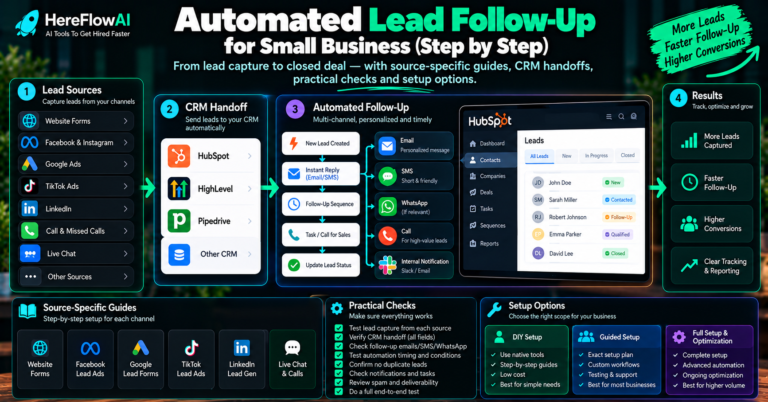
No—not by default. Our published $149 Lead Follow-Up Automation Starter covers one lead source, one supported CRM or Google Sheets destination, an approved email follow-up, simple routing, notification, testing and handover. Full WooCommerce order/product/refund synchronization, custom development and complex multi-object mapping are outside that listed scope.
For businesses that only need a plan for one workflow before buying implementation, the $49 AI Automation Audit provides a prioritized blueprint, suggested tools and human checkpoints; it does not install the integration or provide paid software subscriptions. Use a specialist quote for the actual build.
Frequently asked questions
Is WooCommerce HubSpot integration free?
You can use free WordPress and CRM components, and some dedicated connectors advertise free tiers. But order-volume allowances, HPOS add-ons, premium features, HubSpot plan requirements and implementation costs may make a specific setup paid. Confirm the full stack rather than the plugin’s download price.
Does the HubSpot WordPress plugin automatically sync WooCommerce orders?
Do not assume so. HubSpot’s own WordPress documentation emphasizes forms, contact management, chat, marketing and tracking. For ecommerce order sync, verify a dedicated connector and the specific objects it supports.
What is the best WooCommerce HubSpot integration plugin?
There is no universal winner from published feature pages alone. MWB emphasizes ecommerce marketing and abandoned carts, CRM Perks emphasizes object/field mapping and logs, and Unific offers tiered order sync. The best fit depends on your required objects, HPOS environment, order count, update/refund logic and support terms.
Can I sync WooCommerce orders and products to HubSpot?
Some dedicated connectors advertise these objects, but implementation details vary. Verify line items, quantities, SKU associations and order statuses in a real test; never treat successful contact sync as proof.
How much does WooCommerce to HubSpot integration cost?
It can range from self-service setups with free base components to paid add-ons, tiered connectors and individually quoted custom integration services. There is no defensible single market-wide installation cost based on the official sources reviewed here. Ask for first-year subscription fees plus fixed implementation and maintenance pricing.
Can the connector send historical orders?
Some connectors support backfills, often subject to date or plan restrictions; for example, Unific’s public free tier lists up to 30 days of historical orders. Agree on the required historical range and verify deduplication before running a bulk import.
Final verdict: choose the sync scope before the plugin
For basic form capture: HubSpot’s free WordPress plugin may be sufficient. For store order/customer sync: shortlist dedicated WooCommerce ecommerce connectors and check HPOS, objects, limits and refunds. For unusual workflows: hire a specialist with a fixed-scope brief and measurable tests.
A WooCommerce HubSpot integration is successful only when the right record reaches the right place, updates safely, and can be recovered when something fails. That is what the project brief above should buy—not a dashboard screenshot that merely says “Connected.”
Sources, research date and independence
Primary references checked October 18, 2026: HubSpot WordPress plugin, HubSpot installation help, MWB official WordPress listing, CRM Perks plugin directory, Unific HubSpot Marketplace listing, WooCommerce webhooks guide, and WooCommerce HPOS documentation. Vendor claims are attributed and have not been independently benchmarked by HereFlowAI. The site offers its own $49 audit and $149 lead-follow-up setup, and uses disclosed Fiverr affiliate links. Prices and compatibility change; request written confirmation before purchase.